

To present PowerPoint slides in Teams while viewing your notes, choose the deck under PowerPoint Live from the meeting’s Share menu. Your presenter view shows the slides and notes together. Test with another participant before the meeting to confirm what the audience sees.
Contents
Present with PowerPoint Live
- Join the Teams meeting with the account that can access the deck.
- Select Share, then choose the presentation under PowerPoint Live or browse for the file.
- Confirm that the slide appears for attendees while your presenter view shows notes and slide controls.
- Check participant navigation settings if you need everyone to remain on the same slide.
Microsoft’s PowerPoint Live guide documents the presenter view and audience controls. If you browse for a PowerPoint file that has not been uploaded to Teams before, it is uploaded as part of the meeting. In a channel meeting, the file goes to the channel Files tab; in a private meeting, it goes to your OneDrive for meeting participants. Check your organization’s rules before using sensitive material.
Five-minute preflight
Open: Can the presenter account access the deck? View: Are notes visible only in your presenter area? Sound: Can attendees hear any embedded media? Control: Can participants move through slides if you allow it? Backup: Is a PDF or a link ready if PowerPoint Live fails?
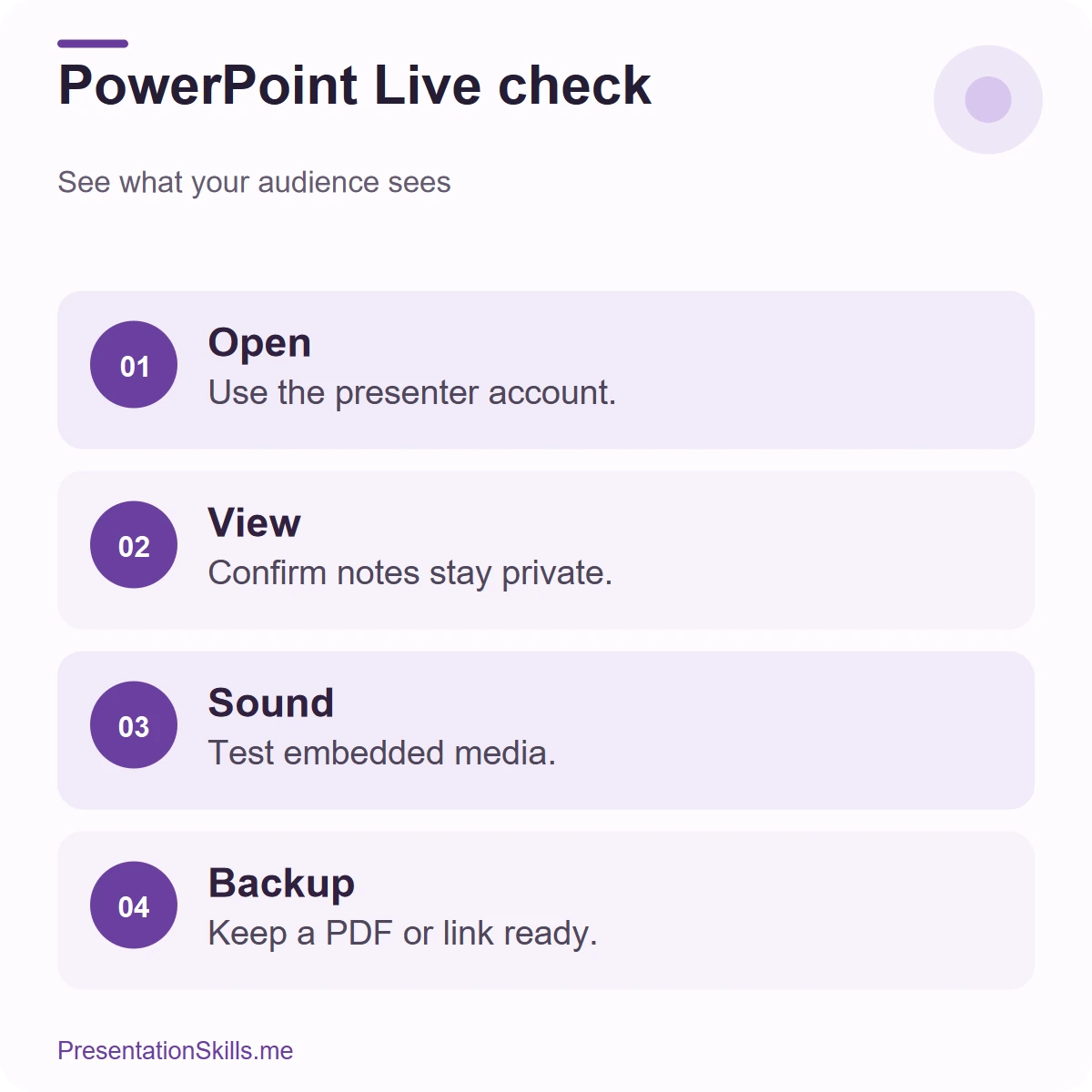
Ask a colleague to join a short test meeting from another device and tell you exactly what they see. Do not infer privacy from your own screen alone. If you share a desktop or window instead, keep the notes in a separate private place and verify that it is outside the shared area.
Finally, narrate what matters on each slide. Viewers may see slides on a smaller screen, and a recording may not capture every interactive element the same way as the live meeting.
Handle notes and chat together
Presenter notes can guide your talk, but Teams chat and participant questions can pull your attention away. For a longer session, ask a colleague to monitor chat and flag questions at planned pauses. Mark those pauses in your notes. This keeps you from trying to read private cues, control slides, and scan chat in the same sentence.
If you need a confidential prompt, use concise notes and rehearse the point; do not leave sensitive internal discussion buried in a deck you might later share. After the meeting, verify the version of the deck sent to attendees.
Run a two-person rehearsal
Open the Teams meeting and choose the PowerPoint Live option from the sharing controls. Select the deck, move to a middle slide, and check that you can see your notes and the participant view you expect. Ask a colleague what appears on their screen. Their view matters more than the preview on yours, especially if you are also sharing another window.
Rehearse one transition that uses a link, animation, or media clip. Features that work in a local slide show may behave differently in a meeting, so test the exact part the audience needs. Keep a PDF or a few key screenshots available if the deck cannot load.
Design the presentation around the meeting
Place your speaking cues in the slide notes, but keep decisions and questions in the meeting chat or a shared document where participants can find them later. If people are allowed to move through slides on their own, tell them when you need everyone on the same page. A short verbal cue such as “Please return to slide six for the decision” prevents silent drift.
When a participant interrupts with a useful question, pause the deck and answer it. Make a note of any change to the plan, then resume from a clear slide title. The presentation should help the meeting reach an outcome; it does not need to run uninterrupted.
