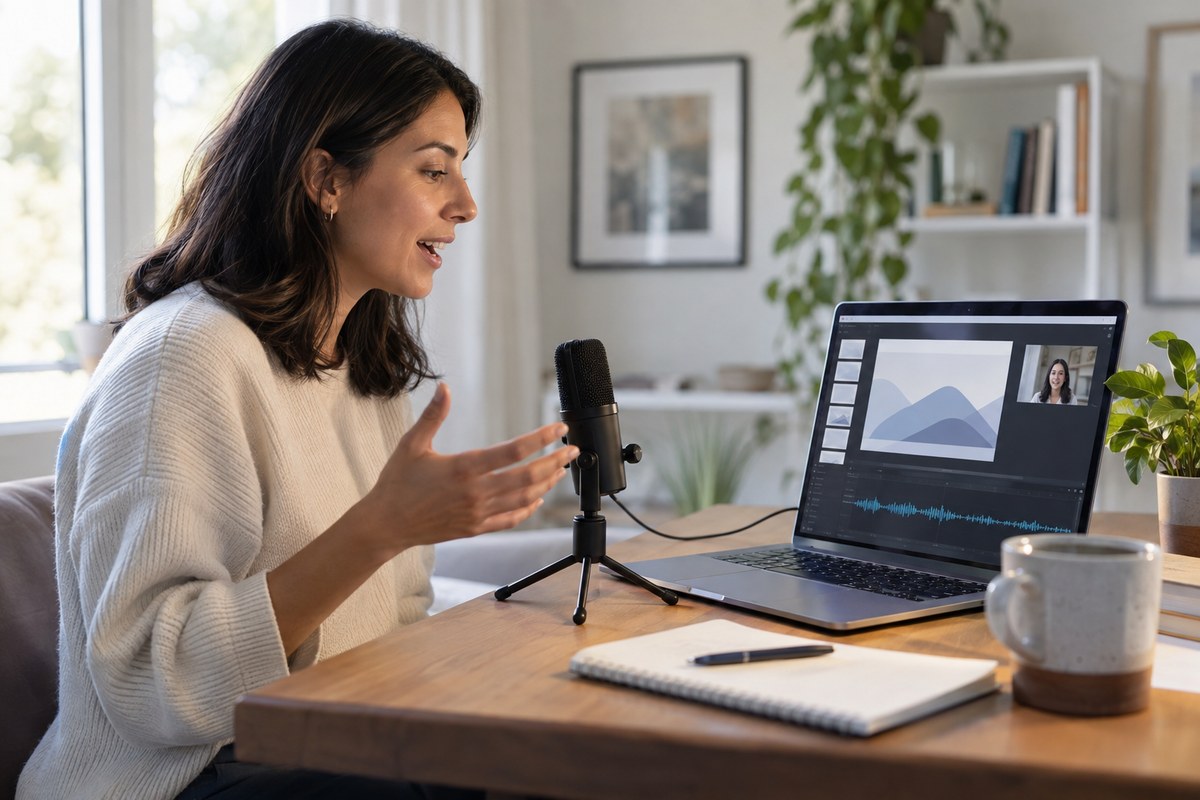
To record a presentation in PowerPoint, open the Record tab, test your microphone, and narrate the slides in small groups. Retake a weak slide, then export and watch the finished video. A short sound check at the start saves more time than re-recording the whole talk.
Contents
Record the slide show
- Open the finished deck and check that videos, fonts, and transitions work.
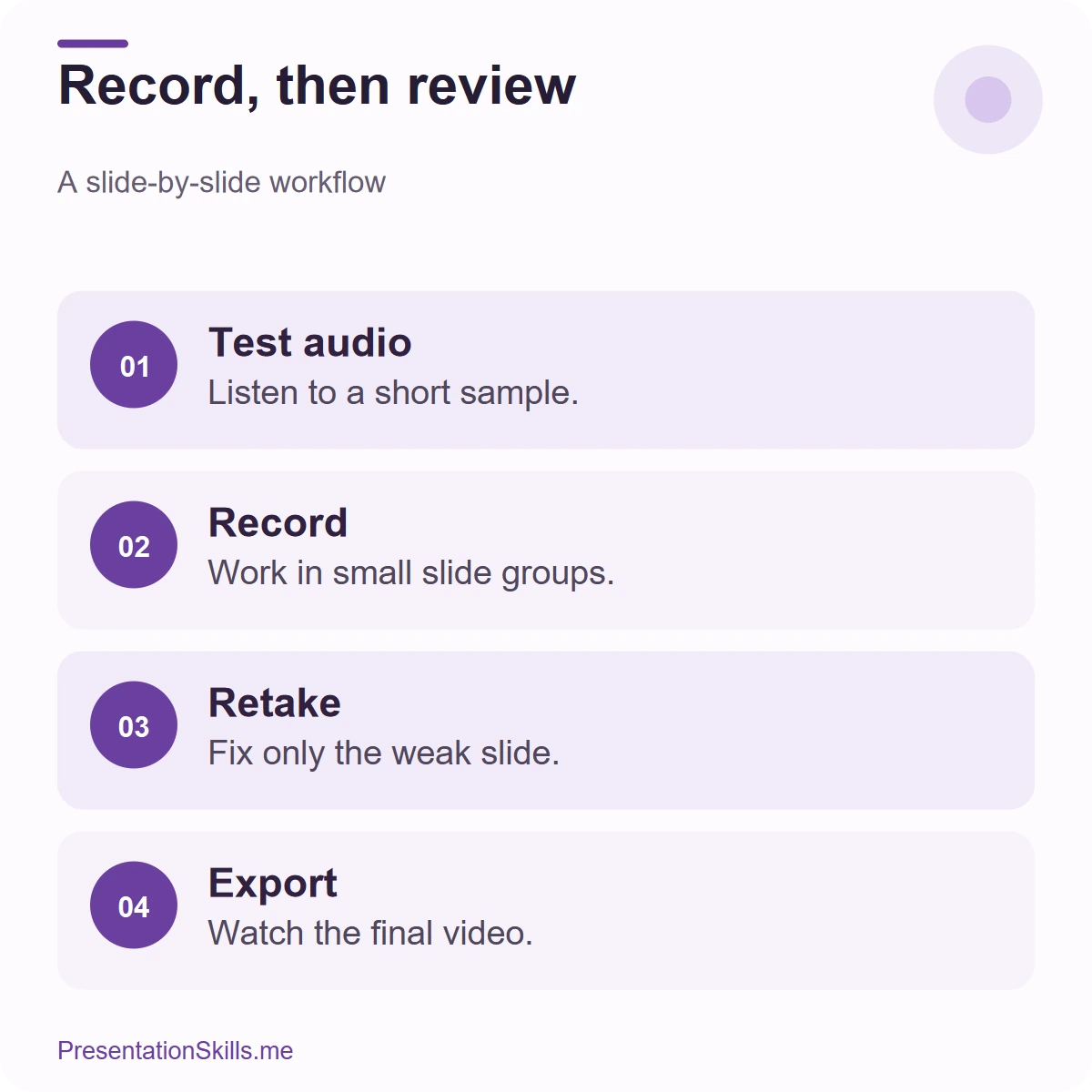
- Use PowerPoint’s Record command, choose the microphone and camera you want, and record a short test slide.
- Play that slide back through headphones. Check volume, room noise, and whether your first words were clipped.
- Record the rest in small groups of slides. Retake a slide when needed instead of restarting the whole deck.
- Save the deck; if the audience needs a video file, export it as a video and watch the exported file from start to finish.
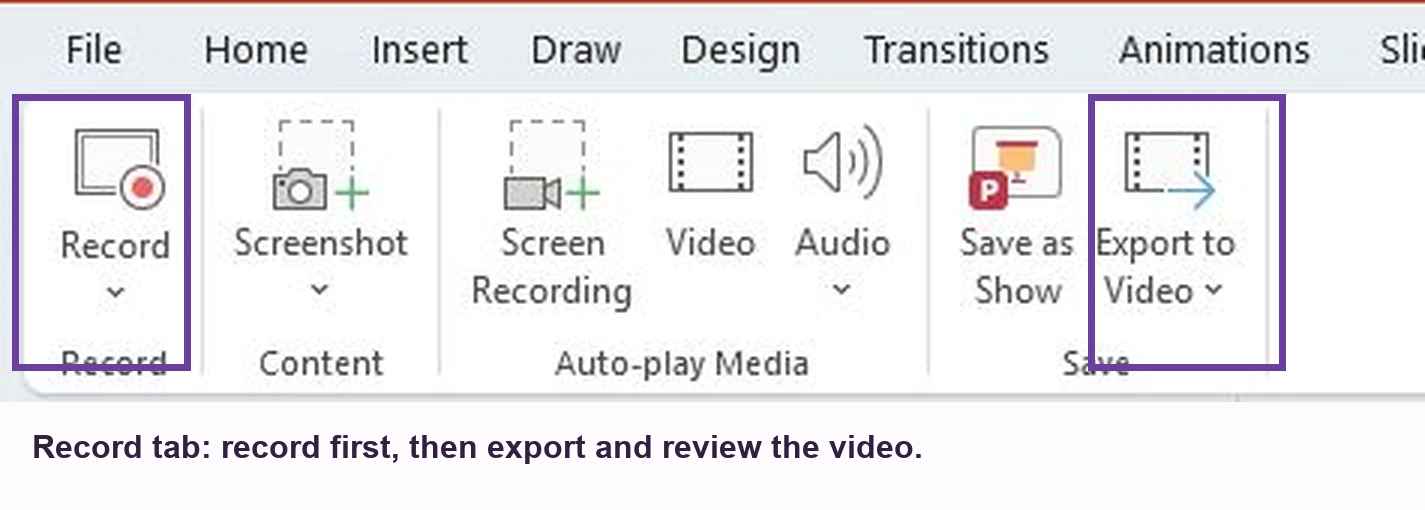
The available controls vary by PowerPoint version. Microsoft explains narration and slide timings and video export.
Make a recording cue sheet
For each slide write: purpose (one sentence), visual to point out (one detail), next-step cue (one phrase). Mark where to pause. Avoid transcribing every word; a script tends to flatten the voice.
Five checks before sending
- The opening explains what the viewer will be able to do afterwards.
- Each slide’s narration adds something the slide does not already say.
- Text remains readable on a laptop screen.
- Audio level is consistent and quiet gaps are intentional.
- The final slide gives a useful action, question, or contact point.
Watch the video once at normal speed without looking at your notes. That is the closest test to your audience’s experience.
Record in sections, then listen for continuity
Small recording sessions make mistakes easier to fix, but they can produce abrupt changes in volume or energy. Keep the microphone in the same place and record in a similar room. Before each retake, listen to the last few seconds of the previous slide, then begin at a matching pace. Leave a short silent beat at each slide boundary so the export does not clip your first or last word.
If you plan to share the deck itself, check that the recipient can play its embedded narration. If you share a video, add captions where possible and send the deck or a text summary for anyone who needs to revisit the material.
Record a small section, then review it
Use a two-slide test before recording the whole talk. Speak through the opening and the first transition, play them back, and listen for three things: an audible first word, a natural pause before the next slide, and a level that stays comfortable. If the opening sounds rushed, leave a second of silence after you start recording. You can trim the start later if needed.
When a slide goes wrong, re-record that slide or section. Keep the same microphone distance and room conditions so the retake does not sound like a different session. A brief cue for each slide—point, example, transition—is usually enough. A full script can be useful for exact wording, but read it aloud several times before recording.
Check the file as a viewer would
After exporting, open the finished video outside PowerPoint and watch the beginning, a middle slide, and the ending. Check that the audio continues across slide changes and that text remains readable at the size people will actually use. If the file will be watched on a phone, small labels on a dense chart may need a separate close-up slide.
Before sharing, confirm whether captions or a transcript are needed for your audience and delivery platform. Keep the original deck and recording files so you can correct a number or replace one section without rebuilding the talk.